

Introduction
Recently, I published the article “ChatGPT Team 48-Month Promo Code: 2 Seats for Only £11.”
I also recommended a virtual card payment method in this article:
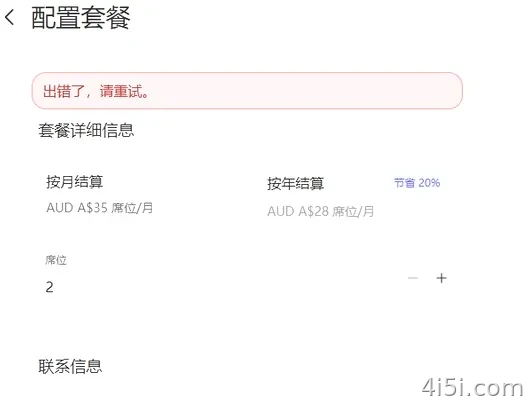
However, many readers left messages saying that their payments failed with the following error:
“Payment was not approved. Something went wrong. Please try again.”
So in this article, I will share a few possible solutions.
Method 1: Change Your IP Address
This is the simplest method.
In many cases, using a high-quality residential broadband IP can solve the payment approval issue.
The node used in this article can be found through my short-link business card:
Step 1: Use an IP from the promo code region
First, use an IP address from the same country or region as the promo code and open the payment page.
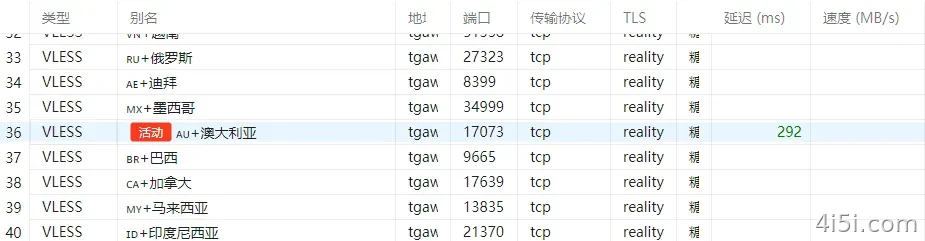
For example, this time I used the Australian promo code:
adacaau
So I first selected an Australian IP address.
Step 2: Try paying with your card directly
Fill in your credit card information and submit the payment.
In many cases, you may see the same error shown in the first screenshot:
“Payment was not approved. Something went wrong. Please try again.”
Step 3: Do not close the current checkout window
Keep the current payment page open.
Then switch your IP address directly.
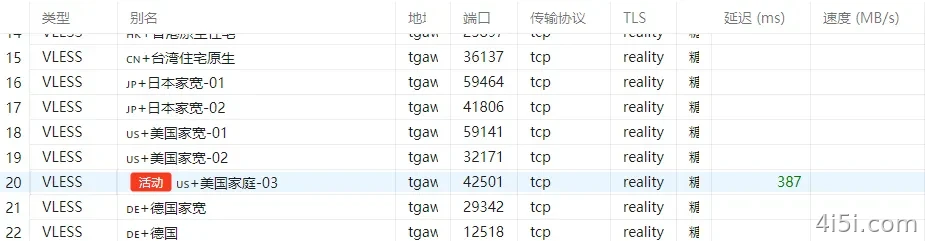
In my case, I switched to a US residential IP within the same subscription.
Step 4: Submit the payment again
Go back to the checkout page and submit the payment again.

This time, the payment went through successfully.
Operation Video
https://mp.weixin.qq.com/s/Hhd74JkoWwEv2PHVdawmTQ
Method 2: Use the Stripe Hosted Checkout Link
I have already introduced this method in a previous article, so I will not repeat the full steps here.
You can refer to this guide:
“Two Ways to Get a GPT Stripe Hosted Checkout Link”
In short, this method uses the older Stripe checkout interface, commonly referred to as the “long checkout link.” In some cases, it has lower risk-control restrictions and may be easier to pass.
Method 3: Use PayPal
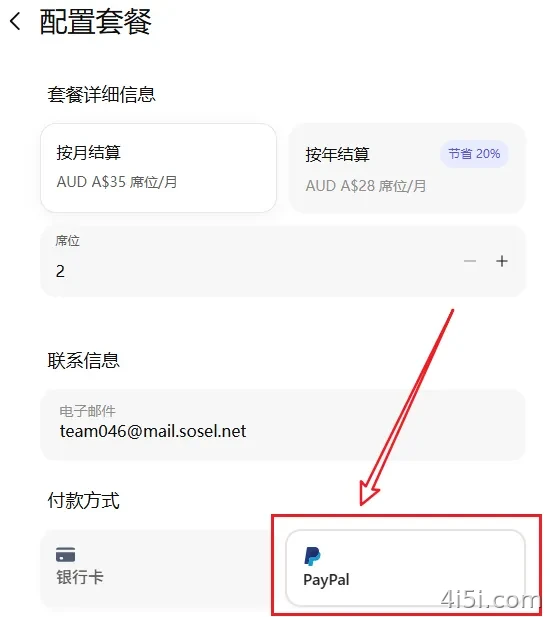
ChatGPT also supports PayPal payments in some regions.
At the moment, PayPal can be triggered under an Australian IP. In the past, many EU-region IPs could also bring up the PayPal option.
I previously tested a free trial successfully using a German IP and PayPal.
Method 4: Use Apple Pay
This method needs to be used together with Method 2.
After generating the Stripe hosted checkout link, copy the link and open it in Safari on an iPhone.
In many cases, Safari will trigger Apple Pay as a payment option.
This method is useful when you have already obtained the long checkout link but the card payment still fails. You can treat it as an additional backup solution.
Summary
At the moment, ChatGPT card payments appear to have two main checkout channels:
- The official OpenAI checkout interface, which is the default payment page
- The older Stripe checkout interface, which is the “long checkout link” mentioned above
In general, the Stripe checkout link may have lower risk-control restrictions and can be easier to pass with some cards.
Besides these two card payment channels, you can also try third-party payment options such as PayPal and Apple Pay when available.
Try different combinations of IP, checkout channel, and payment method. In many cases, one of them will work smoothly.
Hope everyone can complete the payment successfully.







暂无评论内容